 Zonify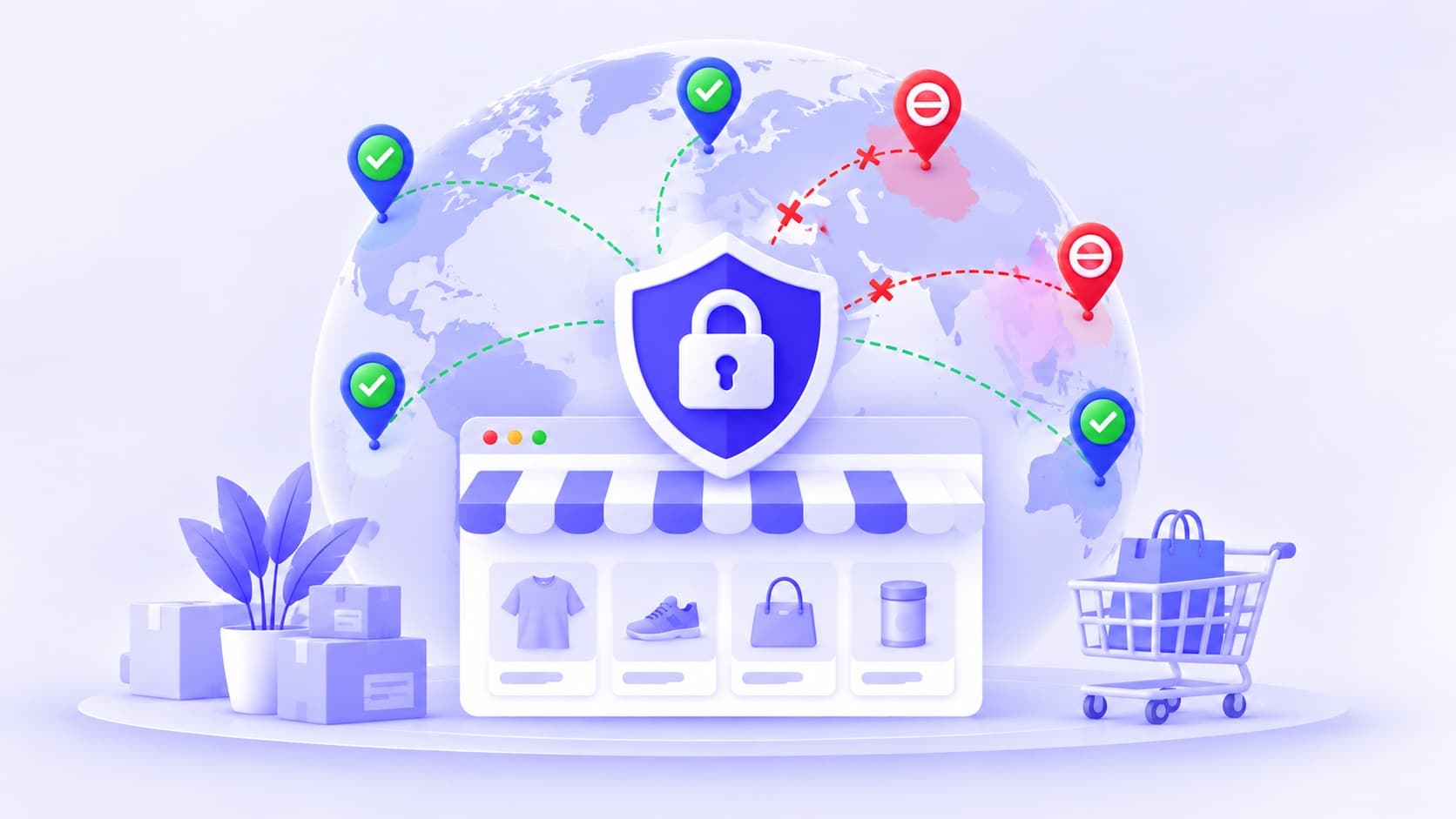
You ship to five countries. Then an order arrives from a sixth.
Now you have a choice you never wanted to make. Refund it, or try to find a courier that goes there. Either way, you spend time, you may pay fees, and a customer who was excited about your product ends up disappointed.
Blocking countries on your Shopify store stops that from starting. Visitors from countries you can't serve see a short message, or go to a page you choose, instead of browsing products they can't buy.
This guide explains when blocking countries makes sense, what Shopify already does for you, and how to set it up step by step with no code. It also covers what country blocking can't do, because knowing that helps you set it up well.
When blocking countries makes sense
Blocking a country is a business decision, not a security setting. It is a good fit when:
- You only ship to some countries. Visitors from elsewhere can't get your products, so letting them browse leads to refunds, support emails and disappointed shoppers.
- You're only allowed to sell in some places. A brand or a distributor agreement may limit where you can sell certain products.
- You're launching country by country. You want the store open in your first markets only, while you prepare the rest.
- You keep getting problem orders from a place you don't sell to. Blocking stops those visitors from reaching your product pages.
It is not a good fit if you want to stop a determined person. Country checks can be worked around, as we explain below.
If you sell to consumers in the European Union, some laws limit blocking shoppers from other EU countries. Our page on Shopify geo blocking covers the legal points to check first.
What Shopify already does, and what it doesn't
Before you add anything, it helps to know where Shopify's own settings stop.
Shopify Markets and your shipping settings decide where you sell and deliver. Checkout only accepts addresses you ship to, so someone in a country you don't serve can't finish an order that needs shipping there.
But Markets doesn't keep anyone out of your store. A visitor from any country can still browse your products, add them to the cart and only find out at checkout that you don't deliver to them. That is the moment country blocking deals with.
We compare the two in more detail in Shopify Markets vs country blocking.
Block list or allow list: pick one
There are two ways to set up country rules. Pick the one that matches how you sell.
| Block list | Allow list | |
|---|---|---|
| What you add | The countries you want to keep out | The countries you serve |
| Everyone else | Can visit | Is blocked |
| Best for | Stores that sell almost everywhere, with a few exceptions | Stores that sell to a short list of countries |
| Example | Block two countries you can't legally sell to | Allow only India, the UAE and the UK |
How to block countries on Shopify, step by step
Here is the setup with Zonify's country blocker. It takes a few minutes and no code.
1. Install Zonify
Install Zonify from the Shopify App Store. It's free, and it asks for no access to your orders, products or customers, because it doesn't need any.
2. Turn on the app embed
This is the step people miss. Nothing is blocked until it's done.
- In your Shopify admin, go to Online Store → Themes, then open the theme editor for your live theme.
- Open App embeds.
- Switch Zonify on, then click Save.
The setup guide on Zonify's Onboarding page links straight to this panel, and ticks the step as soon as the embed is on. If your store has a password page, enter the password first, or no visit can reach Zonify.
3. Add your country rules
Open Countries in Zonify and click Add countries:
- At the top of the Add countries panel, pick Block or Allow only.
- Search for the countries and tick them. You can tick several at once.
- If you're blocking and want those visitors sent somewhere, click + Send them to a page instead of the message and enter a full web address under Redirect to. Leave it empty to show your message instead.
- Click the button, for example Block 2 countries.
Before you save an allow list, Zonify tells you how many countries will be blocked. After that, the table marks each country Blocked or Allowed, and the Dashboard says it in words, such as “Allow list: only 3 countries can visit”.
4. Choose what blocked visitors see
On the same page, the What blocked visitors see card has two settings, and a preview that shows the result as you type:
- Redirect to: a page to send blocked visitors to, used when a country has no redirect of its own.
- Message: what a blocked visitor reads, under the heading “Store not available”. The default is “Sorry, this store is not available in your country.”
Click Save in the bar that appears at the top of Shopify admin.
A kind, clear message works better than a blunt one. For example: “Sorry, we don't deliver to your country yet.”
5. Check that it works
Open Analytics in Zonify. The Visits table shows each visit's country, whether it was allowed or blocked, and the reason. Click Blocked above the table to see only the visits that were turned away.
What country blocking can't do
Country blocking is useful, but it isn't perfect. Here is what to expect.
- The country is a best guess. Zonify reads it from the visitor's browser: its time zone first, then its language setting. Someone who changes those settings can appear to be somewhere else, and a traveller whose laptop still uses their home time zone is treated as being at home.
- Unknown means allowed. When the country can't be told, the visitor is let through the country check. That way a shopper with unusual settings isn't blocked by a rule meant for someone else.
- The first page shows for a moment. Shopify sends your store's page before any app can check the visitor, so on a first visit the block appears about a second later. After that, the block shows straight away.
- It doesn't cover checkout. Apps like Zonify run on your online store's pages. Your shipping settings still decide which addresses checkout accepts, which is why the two work well together.
- It isn't a security control. Use it to decide where you sell, not to protect anything secret.
Common mistakes to avoid
Leaving your home country off an allow list. If you sell in India and switch on an allow list with only the UK and the US, every Indian shopper is blocked, including you on your own storefront.
Not allowing your own address first. Before you block your own country or switch on an allow list, click Always allow my IP on the Zonify Dashboard, or open IP addresses, click + Add my IP and choose Always allow. An always-allowed address skips every rule and affects nobody else, so you can always check your storefront. Your Shopify admin is never blocked either.
Forgetting search engines. Crawlers that run scripts, like Google's, are checked like any visitor. If you block the country a crawler appears to come from, it may see your block page. After changing country rules, check a page with the URL Inspection tool in Google Search Console.
Switching themes and forgetting the app embed. App embeds belong to a theme. When you publish a new theme, switch Zonify on again in that theme's App embeds.
The short version
- Block countries when you can't ship or can't sell there, not to stop determined people.
- Shopify Markets limits where checkout delivers. Country blocking keeps visitors you can't serve out of the store itself.
- Pick a block list for a few exceptions, or an allow list for a short list of countries, and check your own country is on it.
- With Zonify: install, turn on the app embed, add rules, set your message, and check Analytics.
- Country is a best guess from browser settings, and unknown visitors are let through.
Want to stop one troublesome visitor instead of a whole country? Read how to block an IP address on Shopify.