 Zonify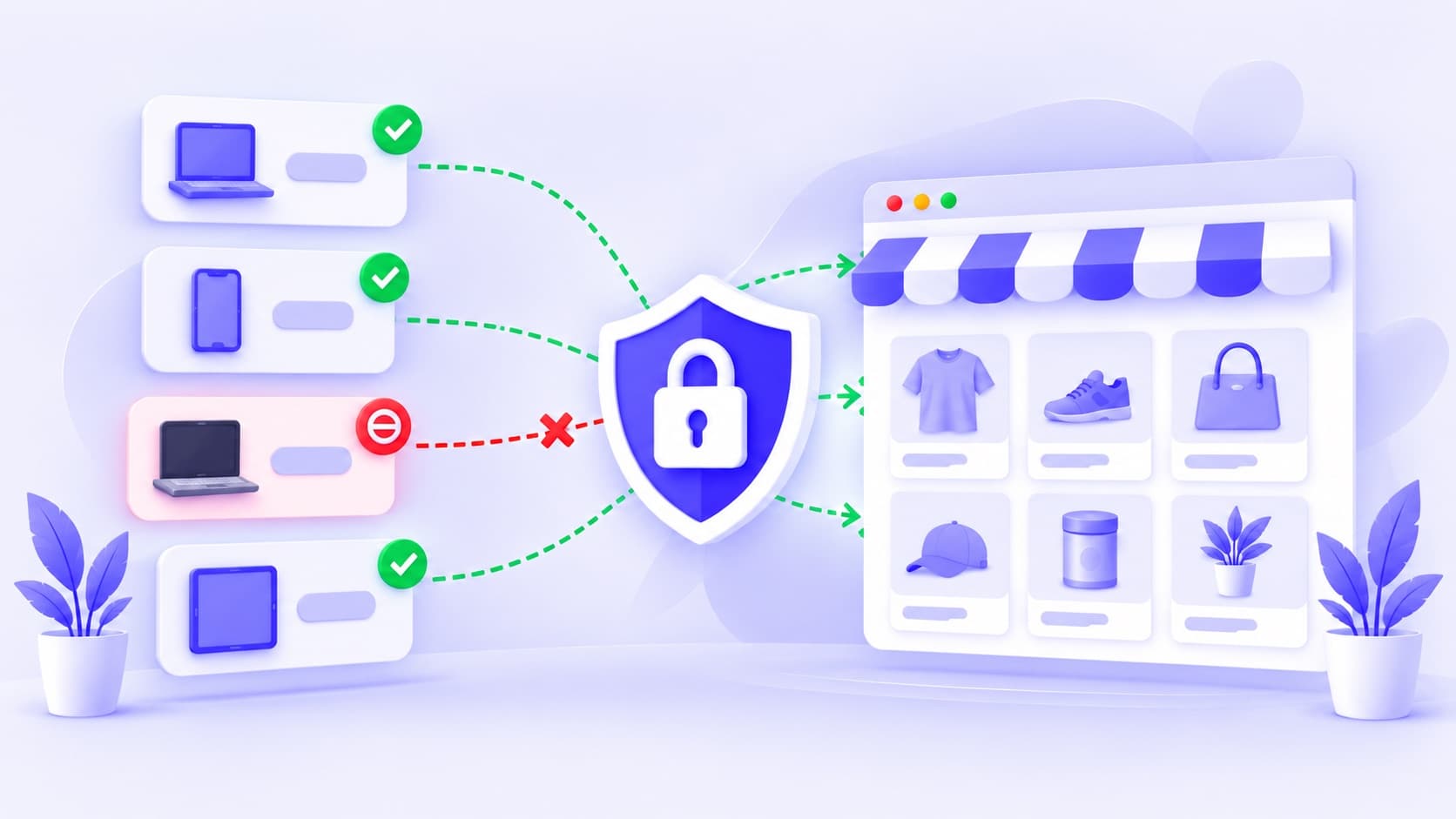
Sometimes the problem isn't a country. It's one visitor.
The same address places order after order that never gets paid. The same address keeps trying cards that fail. The same address keeps coming back after you've already cancelled everything it did.
You can see the pattern. What you need is a way to close the door on that one address, without touching anyone else.
This guide shows how to find the IP address, block it on your Shopify store with no code, and avoid the mistakes that block the wrong people.
What an IP address is, in plain words
An IP address is the number a device uses on the internet. Your store sees it on every visit.
There are two kinds, and most devices today have both:
| IPv4 | IPv6 | |
|---|---|---|
| Looks like | 203.0.113.9 | 2001:db8:4f2a::17 |
| Length | Four numbers with dots | Groups of letters and numbers with colons |
| Common on | Older networks, many home connections | Mobile networks and newer connections |
Because a device can have both, the same person can reach different websites on different addresses. Your storefront might see the IPv6 address while another site sees the IPv4 one. Keep that in mind when you copy an address from somewhere else.
Before you block: know what an IP block can and can't do
An IP block is a good tool for repeat trouble from the same address. It isn't a wall.
- Addresses change. Home connections get new addresses from time to time, and phones change address as they move between networks.
- Addresses can be shared. An office, a college or a mobile network can put many people behind one address. Block it and you may block real shoppers too.
- Anyone can switch networks. A determined person can use a different connection or a VPN and arrive on a new address.
So block an address when you've seen the same address cause trouble more than once, and check the result afterwards.
Step 1: find the address
Shopify's admin doesn't have a setting to block storefront visitors by IP address, so you need an app. With Zonify's IP blocker installed, the addresses are already recorded for you.
Open Analytics in Zonify:
- Visits lists each visit with its address, country, device and whether it was blocked. Click Blocked above it to see only the visits that were turned away.
- Most blocked IPs lists the addresses that keep running into your rules, with how many attempts and when they were last seen.
- Export CSV, at the top of the page, gives you the full visit log for the range you picked, with a time, address, page and reason on every row.
If you're matching a problem to an address, use the time. Find the visit that happened when the trouble happened.
Step 2: block the address
Open IP addresses in Zonify and click Add IP addresses:
- At the top of the Add IP addresses panel, choose Block.
- Paste the address into IP addresses. You can paste many at once, one per line or separated by commas. IPv4 and IPv6 both work.
- Add a Note so you remember why, for example “Repeat failed payments, 12 March”. In Analytics, the note becomes the reason shown for that block.
- Click the button, for example Block 2 addresses.
Zonify checks each address as you type: valid ones are marked Ready, anything else shows why it will be skipped, such as “Not an IP address”. So a messy paste from a spreadsheet won't save junk. If you paste your own address by mistake, Zonify warns you before you block it.
Step 3: set what blocked visitors see
Below the table on the IP addresses page, What blocked visitors see has:
- Redirect to: a page to send blocked visitors to. Leave it empty to show your message.
- Message: the text under “Store not available”. The default is “Your IP address has been blocked from accessing this store.”
A preview under the fields shows the result as you type. Click Save in the bar that appears at the top of Shopify admin.
Always allow your own address
The other choice under Rule is Always allow. An always-allowed address:
- always gets in, even from a country you blocked, and
- doesn't affect anyone else. Every other visitor goes through your rules as normal.
Use it for yourself, your team, your agency and your test devices, so a rule can never lock you out.
Step 4: check it worked
Go back to Analytics. When the address visits again, it appears in Visits as Blocked, with your note as the reason. If it keeps trying, it shows up under Most blocked IPs. Most blocked IPs in Analytics shows how many attempts each address made.
Two things to know when you check:
- The first page can show for a moment. Shopify sends the page before any app can check the visitor, so a blocked visitor may see your store for about a second on their first page. On later pages the block shows straight away.
- Rule changes apply on the next page load. If you remove a block, the visitor gets your store back the next time they load a page.
Tips for keeping your IP list useful
- Always add a note. Six months from now, “Repeat failed payments, 12 March” tells you whether the block still matters.
- Review the list now and then. Addresses get reused. Remove blocks you no longer need, so a new owner of that address isn't turned away.
- Watch for shared addresses. If you see lots of normal-looking visits from an address you blocked, it may be shared by many people.
- Keep notes so you can rebuild. IP rules always apply, with no pause switch. If you remove a block to test something, your note tells you what to add back.
The short version
- Block an IP address when the same address causes trouble more than once.
- Addresses change and can be shared, so an IP block isn't a wall.
- Find the address in Zonify's Analytics, then block it on the IP addresses page, with a note.
- IPv4 and IPv6 both work, and you can paste a whole list. Ranges aren't supported.
- Always allow your own address first, so no rule can lock you out. It doesn't affect anyone else.
Need to keep a whole country out instead? See how to block countries on your Shopify store.