 Zonify
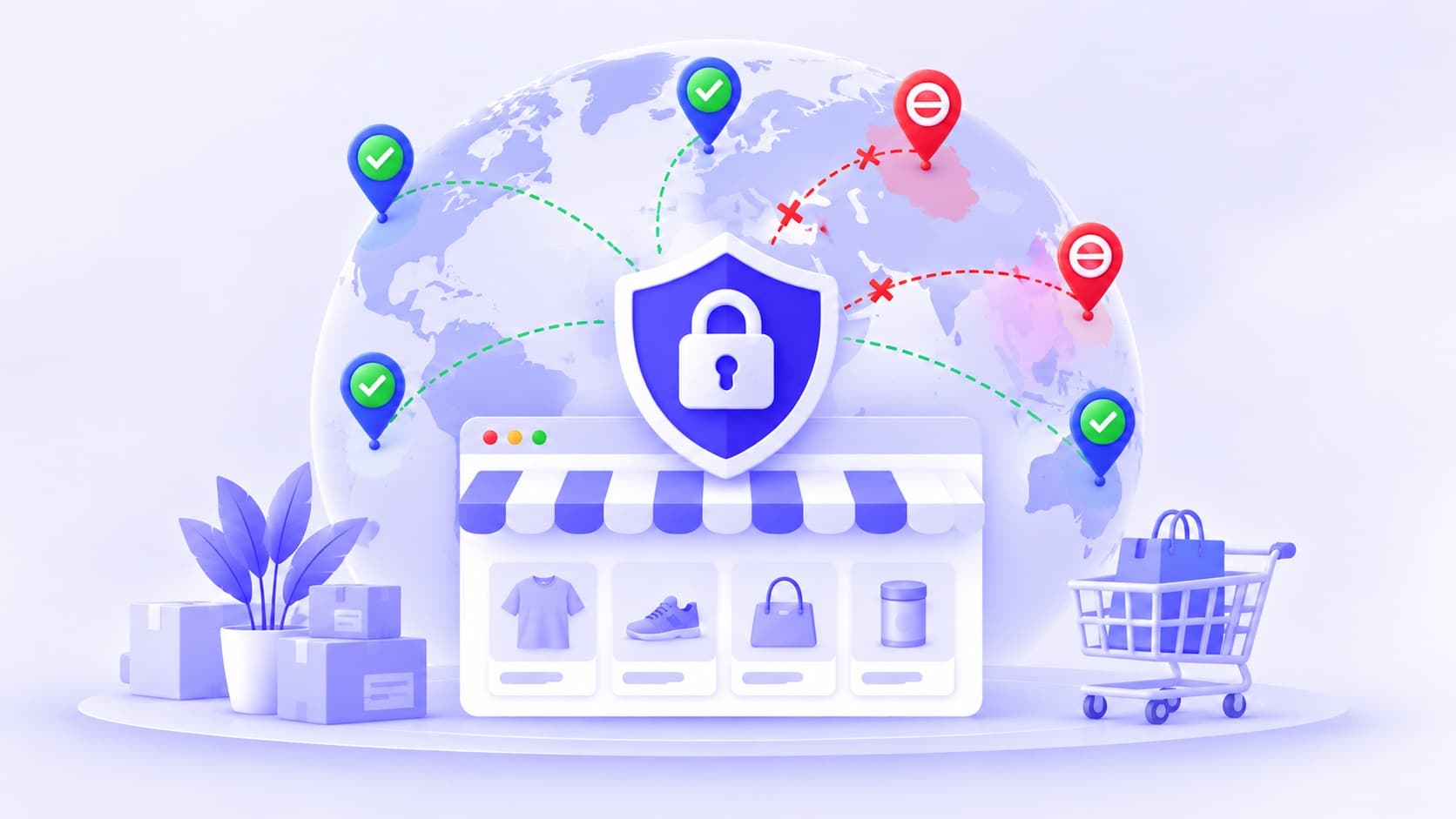
Sometimes the right answer for a visitor from another country isn't "no". It's "not here — over there".
- Your Canadian customers should buy from your Canadian store, which has local prices and shipping.
- In Germany, you sell through a distributor, and you're not allowed to sell direct.
- You're opening in Australia next spring, and you'd like Australian visitors to join a waitlist.
In each case you want visitors from one country sent to a different page. This guide explains the two kinds of country redirect on Shopify, and how to set up the kind that sends people away for good.
Two kinds of country redirect
| Suggest a store | Send visitors away | |
|---|---|---|
| What the visitor sees | A pop-up suggesting another country or currency | Your message, then the page you chose |
| Can they stay? | Yes, they choose | No |
| Tool | Shopify Markets and a country selector | A country blocker with redirects, such as Zonify |
| Good for | One brand, several markets, the shopper decides | Countries you can't, or mustn't, sell to from this store |
If shoppers should be free to choose, use Shopify Markets and its country selector. They're built for that.
If visitors from a country must not use this store, you need the second kind. That's what the rest of this guide sets up.
When sending visitors away makes sense
- You run separate stores per region, and each region's prices, taxes or stock must stay separate.
- A distributor or retailer has the rights in a country, and your agreement says you can't sell there direct.
- You're not open in a country yet, and want visitors to join a waitlist instead of browsing products they can't buy.
- You can't sell a product in a country for legal reasons, and want visitors to land on a page that explains why.
If you sell to consumers in the European Union, check the EU's geo-blocking rules first: they limit sending EU shoppers away from your store because of where they live. Our page on Shopify geo blocking covers what to check.
How to redirect visitors by country, step by step
Zonify is free and needs no code.
1. Install Zonify and turn on the app embed
Install Zonify from the Shopify App Store. Then go to Online Store → Themes → Customize → App embeds, switch on Zonify and save. Without the embed, no rule runs.
2. Always allow your own IP
On the IP addresses page, click + Add my IP. You'll still see your own store, whatever country rules you add, so you can test without being sent away.
3. Add the country, with its own redirect
- Open the Countries page and choose Block.
- Tick the country, for example Canada.
- Click + Send them to a page instead of the message, and paste the address, for example
https://ca.yourstore.com. - Save.
Each blocked country can have its own redirect. Canada can go to your Canadian store while Germany goes to your distributor.
4. Set a default for every other blocked country
At the bottom of the Countries page, under What blocked visitors see, write your message and, if you like, a default Redirect to address. Blocked countries without their own redirect use it.
5. Test it
Ask someone in that country to visit, or check Analytics: each blocked visit is listed with its country and the reason.
What the visitor sees
- Your store starts to load.
- About a second later, it's replaced by a page that says "Store not available", your message, and "Taking you somewhere else…".
- About two seconds after that, they arrive at the page you chose.
Write your message for that moment. "Hi Canada! You'll find us at our Canadian store" works better than "Access denied".
Limits to know
- The country is a best guess. Zonify reads it from the visitor's time zone, then their language. A traveller can be sent to their home store, and someone who changes their settings can avoid the redirect.
- No VPN detection. Someone using a VPN may not be redirected, or may be redirected by mistake.
- The first page shows for a moment before the redirect, on a first visit.
- It's whole countries only. You can't redirect one state or city.
- IP rules use one redirect. A blocked IP address goes to the IP page's default redirect, not a country's.
- Search engines can be redirected too. Google's crawler runs scripts and is checked like any visitor. If it's placed in a redirected country, it won't see your pages. After adding a rule, test a page with the URL Inspection tool in Google Search Console.
The short version
- To suggest another store and let shoppers choose, use Shopify Markets and its country selector.
- To send visitors away from countries this store mustn't serve, block the country and add a redirect.
- In Zonify, each blocked country can have its own redirect, with a default for the rest.
- Always allow your own IP first, and test with Google Search Console afterwards.
New to country rules? Start with how to block countries on your Shopify store.