 Zonify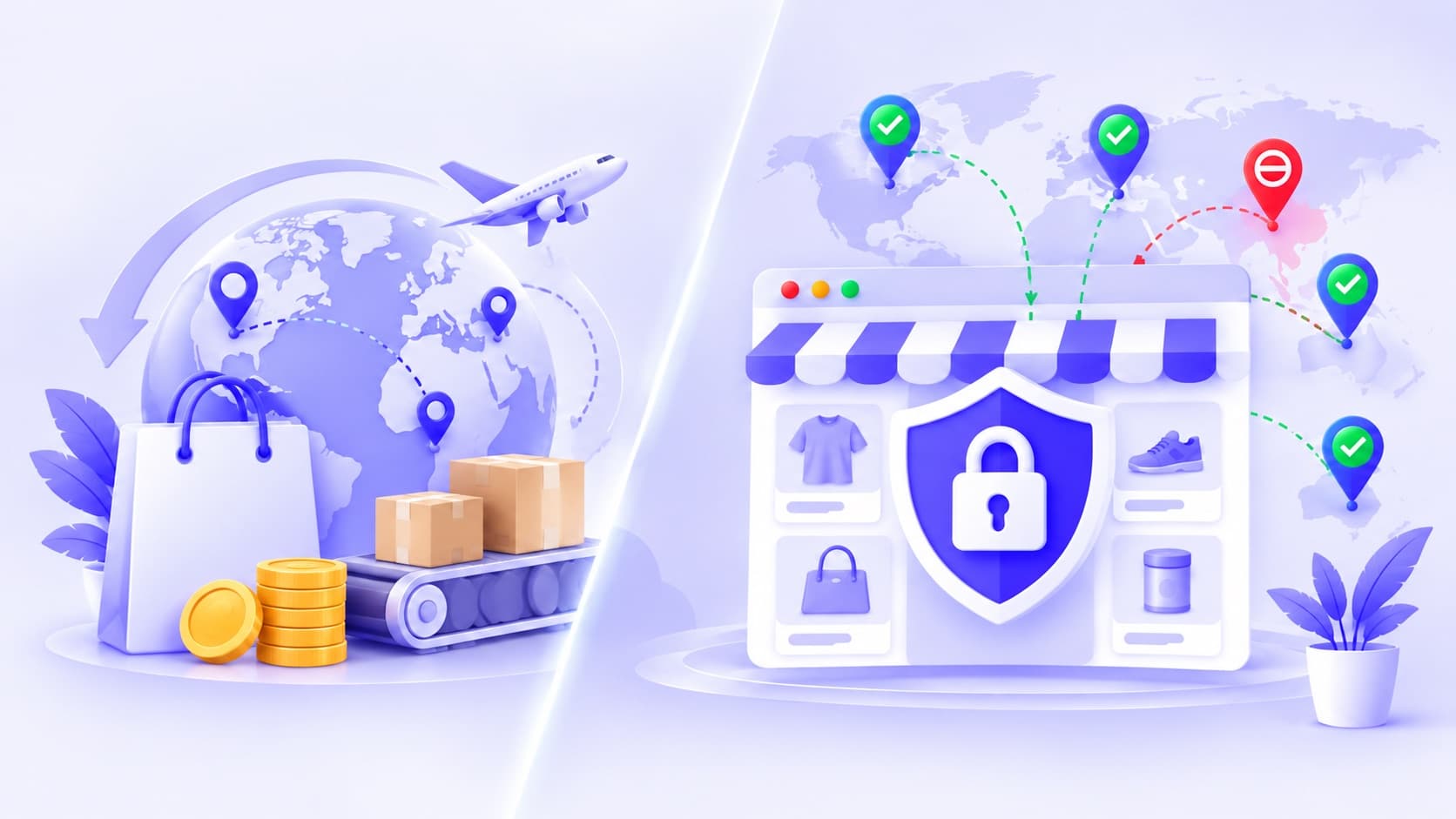
“I've set up Shopify Markets for three countries. Why am I still getting visitors, and cart attempts, from everywhere else?”
It's one of the most common surprises for store owners who sell to a few countries. The answer is simple once you see it: Shopify Markets decides where you sell. It doesn't decide who can visit.
This article compares the three tools stores use to limit countries: Shopify Markets, a code snippet in the theme, and a country blocking app. It covers what each one controls, where they overlap, and how to use them together.
The quick answer
| Shopify Markets | Theme code snippet | Country blocking app | |
|---|---|---|---|
| Decides which countries you sell to | Yes | No | No |
| Limits checkout to places you ship to | Yes | No | No |
| Keeps visitors from other countries out of the store | No | Partly, while the code works | Yes |
| Blocks a single IP address | No | No | Yes, in apps that support it |
| Shows a message or redirects | No | Redirects only | Yes |
| Keeps a record of who was turned away | No | No | Yes |
| Survives a theme change | Yes | Only if copied across | Rules stay; switch the app embed on again |
The short version: Markets handles selling and checkout. A country blocker handles who gets in. Many stores use both.
What Shopify Markets does
Shopify Markets is Shopify's built-in way to sell internationally. You group countries and regions into markets and choose how you sell in each one, for example the currency and language shoppers see.
Together with your shipping settings, it decides where you actually sell and deliver. Checkout only accepts addresses you ship to, so a shopper in a country you don't serve can't complete an order that ships there.
What Markets doesn't do
- It doesn't keep anyone out. A visitor from any country can open your store, browse products and add them to the cart.
- It doesn't explain itself early. Shoppers from other countries often find out they can't buy only at checkout, after spending time on your store.
- It has no IP rules. You can't stop one troublesome address.
- It keeps no record of blocked visitors, because it doesn't block visitors.
None of that is a flaw. Markets is built to sell, not to keep people out.
What a theme code snippet does
Some stores paste a snippet of JavaScript into their theme. It looks up the visitor's location, often with an outside service, and redirects some countries away.
It can work, but it has real weak spots:
- It lives in the theme. Change or update the theme and the code may be gone, or broken.
- Every change means editing code. Adding a country means finding the snippet and editing it again.
- It usually can't see IP addresses without paying for an outside lookup service.
- It keeps no record. You can't see who was redirected, or check a complaint.
What a country blocking app does
A country blocking app checks each visitor as they load a page, and applies rules you set in your Shopify admin. With Zonify's country blocker, for example:
- Block countries, or allow only some. Keep a few countries out, or allow a short list and block everywhere else.
- Block or allow IP addresses, one at a time or as a pasted list.
- Show your message or redirect blocked visitors to a page you choose.
- Record every visit with the country, address, device and the rule that decided, and export it as a CSV file.
What a country blocker can't do
Be clear-eyed about the limits too.
- The country is a best guess. Zonify reads it from browser settings, the time zone and then the language. Those can be changed, and travellers can be placed in their home country.
- The first page can show for a moment. Shopify sends the page before any app can check the visitor, so the block appears about a second later on a first visit.
- It doesn't replace your checkout settings. Apps like this run on your online store's pages. Markets and your shipping settings still control checkout.
When Markets alone is enough
You may not need anything else if:
- you're happy for anyone to browse your store, even if they can't buy;
- your products can legally be shown everywhere; and
- visitors from other countries aren't causing refunds, support emails or other trouble.
When to add country blocking
Add a country blocker on top of Markets when:
- you can't offer your products in some countries, for example because of a distribution agreement;
- visitors you can't serve cost you time, through support emails, refunds or cancelled orders;
- you're launching in stages and want only your first markets to see the store; or
- one address keeps causing trouble and you want to block it.
How to use both together
- Set up Markets first. Decide where you sell and ship, and check your shipping settings match.
- Mirror it with an allow list. In Zonify, add the same countries to the country allow list, so everyone else sees your message instead of your products.
- Write a helpful message. For example, “Sorry, we don't deliver to your country yet.”
- Keep the two lists in step. When you open a new market in Shopify, add that country to your allow list the same day.
- Check Analytics. If you see blocked visits from a country you do serve, check that it's on your allow list.
The short version
- Shopify Markets decides where you sell and which addresses checkout accepts. It doesn't stop anyone from visiting.
- A theme snippet can redirect some countries, but it breaks with theme changes and keeps no record.
- A country blocking app keeps visitors you can't serve out of the store, can block single IP addresses, and records who was turned away.
- Use Markets for selling and a country blocker for access, and keep the two lists in step.
Ready to set it up? Follow how to block countries on your Shopify store.