 Zonify
Many Shopify stores sell in one country only. A bakery that delivers across the UK. A furniture brand that ships within the US. A pharmacy licensed to sell in India.
Shopify makes it easy to sell in one country. It doesn't stop people from other countries visiting. They browse, add to cart and only find out at checkout that you can't deliver. This guide shows how to close that gap in three parts, with no code.
The three settings that work together
| Setting | Where | What it does |
|---|---|---|
| Markets | Shopify admin → Settings → Markets | Decides where you sell, and in which currency and language |
| Shipping | Shopify admin → Settings → Shipping and delivery | Decides which addresses checkout accepts |
| Country allow list | A country blocker app, such as Zonify | Decides who can visit your store at all |
The first two come with Shopify. The third needs an app, because Shopify has no setting that keeps visitors out by country.
Step 1: Set your market to one country
- In your Shopify admin, go to Settings → Markets.
- Keep your primary market as your country.
- Turn off, or remove, any other markets, including an "International" market if your store has one.
Now prices, currency and language are set for your one country only.
Step 2: Ship to that country only
- Go to Settings → Shipping and delivery.
- Open your shipping profile and check the shipping zones.
- Remove every zone outside your country.
Checkout now accepts addresses in your country only. Someone abroad can't finish an order that ships to them.
Step 3: Allow only your country
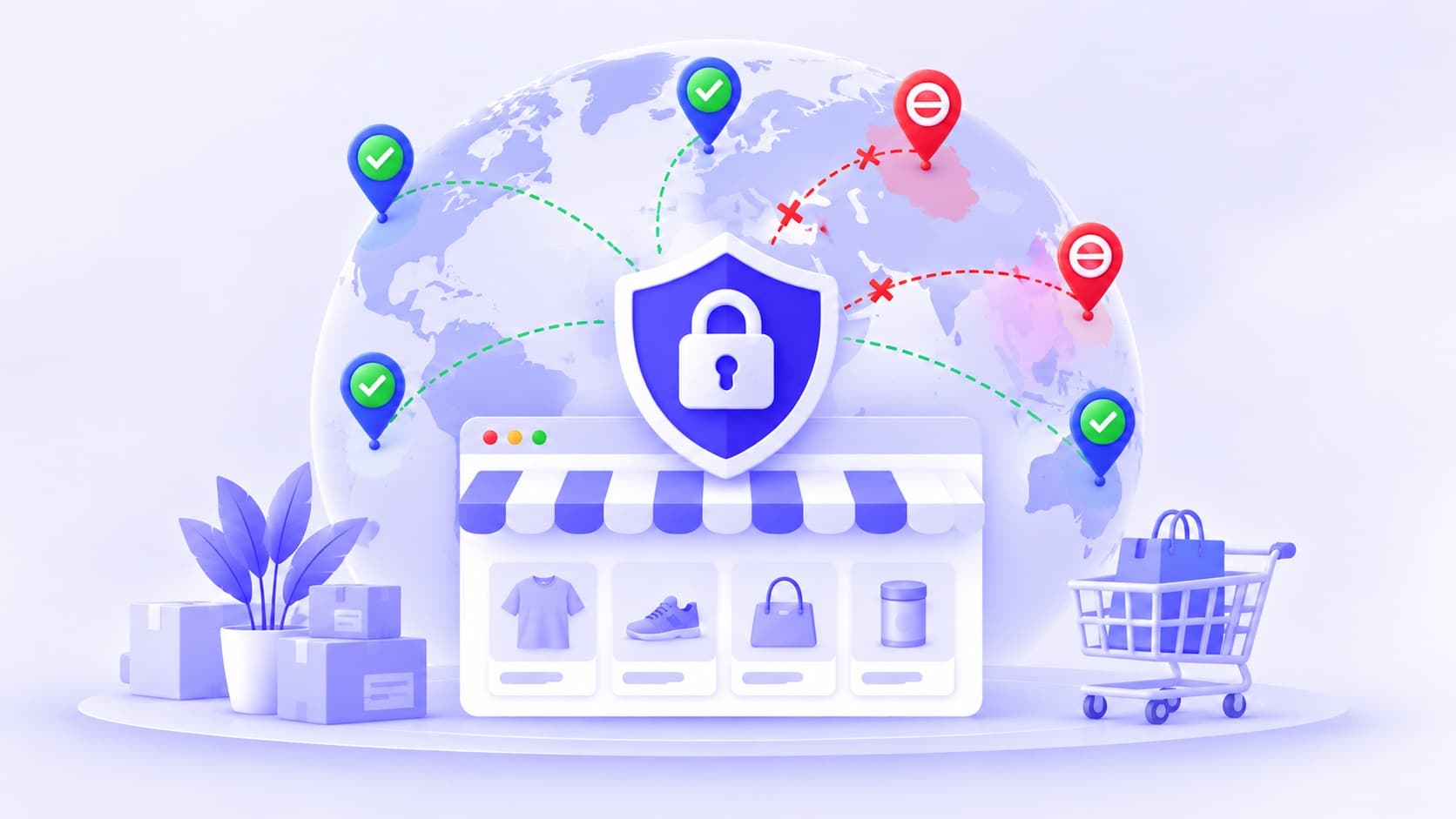
A country allow list blocks every country that isn't on it. With one country on the list, your store is open to that country only.
With Zonify, which is free:
- Install Zonify from the Shopify App Store. It asks for no access to your orders, products or customers.
- Turn on the app embed. Go to Online Store → Themes → Customize → App embeds, switch on Zonify and save.
- Always allow your own IP. On the IP addresses page, click + Add my IP. This keeps you, and anyone you add, from being locked out, even when you travel.
- Add your country to the allow list. On the Countries page, choose Allow only and pick your country. Before you save, Zonify tells you how many countries will be blocked.
- Write your message. For example: "Sorry, we only deliver within the UK." Or send blocked visitors to a page you choose, such as a sign-up form for when you expand.
From the next page load, visitors from every other country see your message instead of your products.
Step 4: Check that search engines can still get in
This step matters most for stores outside the United States.
Crawlers that only read your page's code never run Zonify's script, so country rules don't touch them. But Google's crawler runs scripts, and Zonify checks it like any visitor. Zonify works out a country from the browser's time zone, then its language, and Google's crawler usually reports a US English browser. On a UK-only allow list, Google's crawler may be placed in the United States and see your block page.
To check:
- Open Google Search Console.
- Paste one of your product page URLs into URL Inspection, then click Test live URL.
- Click View tested page → Screenshot. If you see your block message instead of your product, Google is being blocked.
If it is, you have two choices:
- Add the United States to your allow list too, and keep relying on shipping settings to stop US orders; or
- Use a block list instead. Block the countries that cause you trouble, and leave the rest open.
What a one-country setup can't do
- The country is a best guess. Zonify reads it from the visitor's time zone, then their language. A traveller can be placed in their home country, and someone who changes their settings can appear to be elsewhere.
- VPNs aren't detected. If keeping out people who hide their location matters to you, compare country blocker apps with VPN detection.
- The first page shows for a moment. On a first visit, your store shows for about a second before the message replaces it.
- Your customers abroad are blocked too. A loyal customer on holiday may see your message. They can still shop when they're home.
Mistakes to avoid
- Forgetting your own IP. Add it before you turn on the allow list. Your admin is never blocked, but your storefront can be.
- Leaving an "International" market on. Shoppers abroad would see prices in their currency and think they can buy.
- A cold message. "Access denied" sounds like an error. "We only deliver within Australia — for now" sounds like a shop.
- Not checking Google. Do Step 4 after any change to your country rules.
The short version
- Markets: one market, your country.
- Shipping: zones in your country only.
- Allow list: your country only, with your own IP always allowed and a friendly message.
- Search engines: test a page in Google Search Console and adjust if Google is blocked.
For more on block lists, allow lists and messages, see how to block countries on your Shopify store.