 Zonify
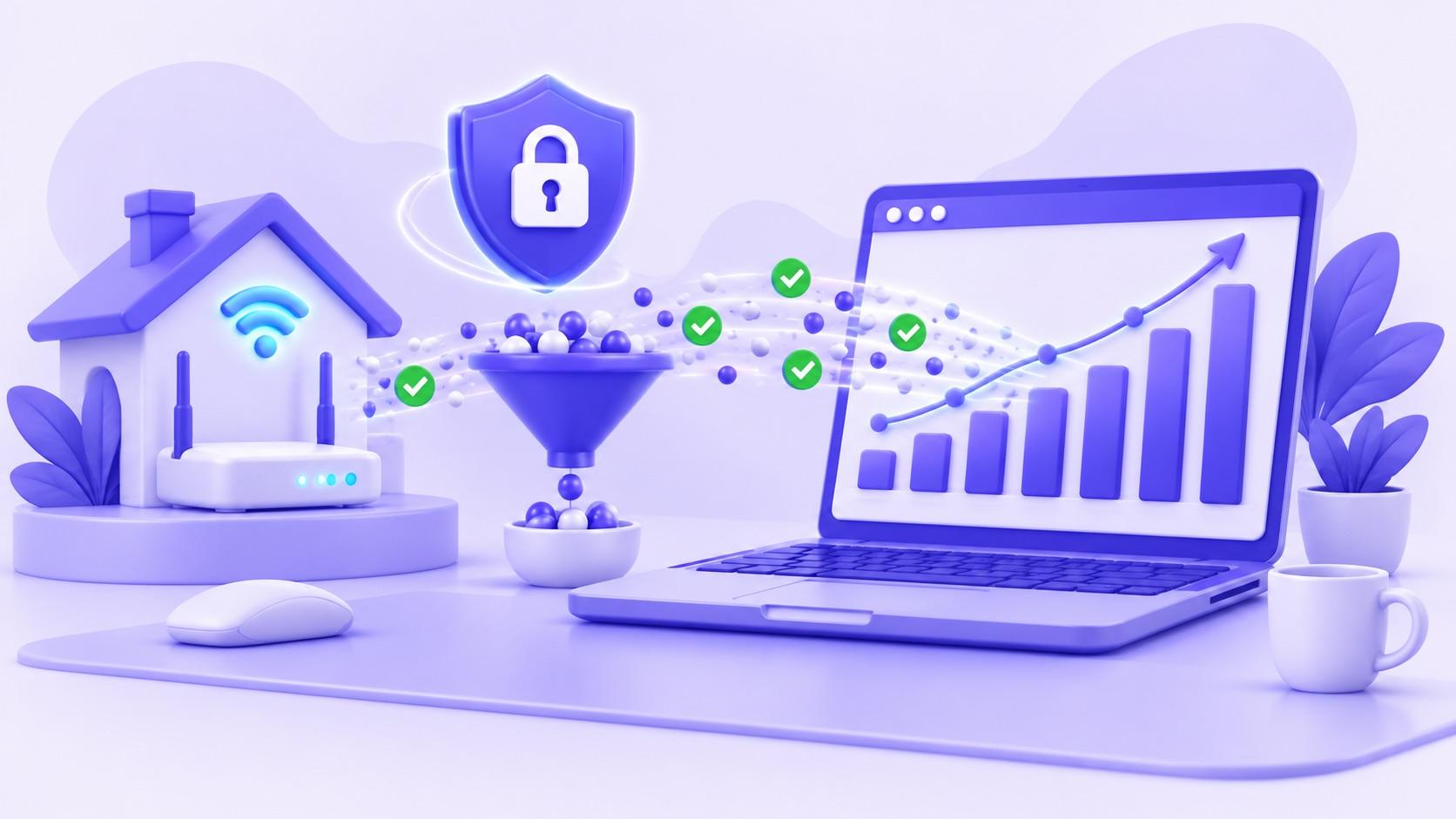
To block your IP address in GA4, you tell Google Analytics which address is yours (an "internal traffic" rule), then switch on the internal traffic data filter. Test the filter first, then make it active. After that, visits from your address stop counting.
The problem for most store owners: the rule matches an address, not a person. If your home connection or your phone gets a new address, the rule no longer matches your visits, and they start counting again. This guide covers the GA4 steps, how to handle an address that changes, and what Shopify's own reports can do.
GA4 and Shopify's reports treat your visits differently
GA4 can leave out visits from addresses you name. Shopify's own reports work another way: on desktop, opening your store with the View store button in Shopify admin keeps that visit out of the acquisition reports. Shopify's Help Center page on those reports doesn't describe a setting to exclude an IP address. So you set up each one on its own.
| GA4 | Shopify's own reports | |
|---|---|---|
| How you leave your visits out | An internal traffic rule (your IP address) plus a data filter | Open the store with View store in Shopify admin on desktop |
| Works by | Your IP address | How you open the store |
| Visits from the Shopify app on a phone | Left out only if the phone's address matches your rule | Counted as a session |
| Old data | Not changed. The filter works from the day you create it | Not covered on the Help Center page |
| Can you undo it | Testing mode: yes. Active mode: the left-out data is gone for good | Not applicable |
If you're not sure what a "session" means in Shopify's reports, see what sessions mean on Shopify.
Step 1: find every address you and your team use
Your IP address is the number your connection uses on the internet. You probably use more than one: home Wi-Fi, a shop or warehouse connection, and your phone on mobile data.
GA4 shows you the address of the connection you're on right now. In the internal traffic rule (Step 2), click What's my IP address? Do this once on each connection you want to leave out.
Two notes before you collect addresses:
- GA4 can't look up your address for you later. Google says that in GA4, IP addresses "are not logged or stored". So you can't find your address in old reports. You find it now, then add it to the rule.
- Think about who else works on the store. A UK shop with a packer in a separate unit, an Indian shop whose staff check orders from home, or an Australian shop with an agency abroad: each of these is a separate address.
Step 2: define your internal traffic in GA4
This is the step people mean when they search for "GA4 exclude internal traffic". It labels your visits. It doesn't remove anything yet. The menu names below come from Google's help page, Filter out internal traffic.
- In GA4, open Admin. Under Data collection and modification, click Data streams.
- Click your web data stream. Shopify sets up GA4 through its Google & YouTube sales channel, so pick the stream for your store.
- Click Configure tag settings, then Show more, then Define internal traffic.
- Click Create and give the rule a name, for example "Owner home".
- Leave the traffic_type value as
internal. That is the default. - Under IP address, choose a Match type and enter the address in Value. "IP address equals" is right for a single fixed address. Step 4 below covers addresses that change.
- To add a second address, click Add condition. Conditions are "OR" conditions: a visit matches if it fits any one of them.
- Click Create.
GA4 accepts both IPv4 addresses (like 203.0.113.24) and IPv6 addresses (like 2001:db8:5a1e:7c00::1f). The examples here come from ranges set aside for documentation, so they belong to nobody.
Step 3: test the filter, then make it active
The rule only labels traffic. The data filter is what leaves it out. A data filter has three states:
| State | What GA4 does |
|---|---|
| Testing | Marks matching visits with the "Test data filter name" dimension, but doesn't leave them out yet |
| Active | Leaves matching visits out, permanently |
| Inactive | Ignores the filter |
- In Admin, under Data collection and modification, click Data filters.
- Click Create Filter and choose Internal Traffic.
- Give it a name, choose Exclude, and check that the parameter value is
internal. - Choose Testing and click Create.
- Visit your store from each address in your rule.
- Wait at least 24 hours, because Google says a filter can take 24 to 36 hours to apply. Then make a free-form exploration in GA4. Use Test data filter name and Event name as rows, and Event count as the value. If your visits show up under your filter's name, the rule works.
- Go back to the filter and change its state to Active.
Google also says data filters don't affect historical data. You can have up to 10 data filters in one property.
Step 4: when your IP address changes
Your address may not be fixed. That's normal, and it is a common reason a GA4 rule seems to stop working. What to do depends on the connection.
Home or small-shop broadband (IPv4). Internet providers can hand out an address for a limited time, then give a new one. This is called a dynamic address. If you check What's my IP address? again and see a different number, update your rule.
IPv6 connections. Devices that use IPv6 "temporary addresses" make new ones over time, on their own. The standard, RFC 8981, sets the default "preferred" life of a temporary address at one day. An "equals" rule with yesterday's address will miss today's visit.
The fix is to match the network part instead of the whole address. An IPv6 address has eight groups. The first four groups are the network part, and they stay the same while the device part (the last four groups) changes. In GA4, choose IP address is in range and enter the first four groups with ::/64 at the end:
| Your address today | What to enter (is in range) |
|---|---|
2001:db8:5a1e:7c00:a4f1:9e2:31bb:6d0 | 2001:db8:5a1e:7c00::/64 |
This covers every device on that home network, including guests. Your provider can also change the network part, so check it again if your visits come back.
Phones on mobile data. Internet providers can share one public IPv4 address among many customers. A phone on mobile data may be using one of these shared addresses. If you add that address to your rule, you may leave out strangers who happen to share it. Don't add mobile data addresses. Do your checking on Wi-Fi, or use the browser option below.
| Connection | What to put in GA4 |
|---|---|
| Office or shop with a fixed address | IP address equals |
| Home broadband, IPv4, address changes now and then | IP address equals, and update it when it changes |
| Home broadband with IPv6 | IP address is in range, with the network part and /64 |
| Phone on mobile data | Nothing. Use Wi-Fi or the browser option |
A browser option for changing addresses. Google offers the Google Analytics Opt-out Browser Add-on for Chrome, Firefox, Safari and Edge. It stops Google Analytics code in that browser from sending your visits. It follows the browser, not the address, so it keeps working when your address changes. It only covers the browsers where you install it, and it affects every website that uses Google Analytics, not only your store. After you install it, visit your store and check that your visits no longer appear in GA4.
Shopify's own reports: use the View store button
Shopify's Help Center page on acquisition reports explains how to view your store without it counting as a session. On desktop, click View store in Shopify admin. The store opens in a new browser tab, and that visit isn't counted in your acquisition reports. Any other way of opening the store on desktop counts as a session. Opening the store from the Shopify app on iPhone or Android also counts.
So the habit is simple: on a computer, open your store from View store in Shopify admin, not from a bookmark or a search. On a phone, expect your visits to be counted.
Where Zonify fits, and where it doesn't
Zonify has no setting that hides your own visits from GA4 or Shopify's reports. It is a storefront blocker. It decides who can open your store.
It has a related step that matters if you block countries or addresses: always allow your own IP address. In Zonify, an always-allowed IP address skips every rule and affects nobody else. That way a country rule can never lock you out of your own store. On the IP addresses page, click + Add my IP and choose Always allow. The Dashboard also shows an Always allow my IP button when your address isn't always allowed yet. See Zonify's IP blocker for how the rules work.
The same honest limit as GA4 applies here. Zonify's IP rules take IPv4 and IPv6, exact addresses only — no ranges. If your address changes, add the new one. To block a troublesome visitor instead, see how to block an IP address on Shopify.
The short version
- In GA4, define internal traffic with your IP address, then create an internal traffic data filter. Test it, then make it active.
- An active filter is permanent and doesn't change old data. Test first.
- Find your address with What's my IP address? in the GA4 rule, once on each connection.
- If your address changes, update the rule. For IPv6, use a range with the network part and
/64. Don't add mobile data addresses. - Google's opt-out add-on follows your browser instead of your address.
- In Shopify's own reports, open your store with View store on desktop. Phone app visits count.
More questions about rules and always-allowed addresses are answered on the Zonify FAQ.