 Zonify
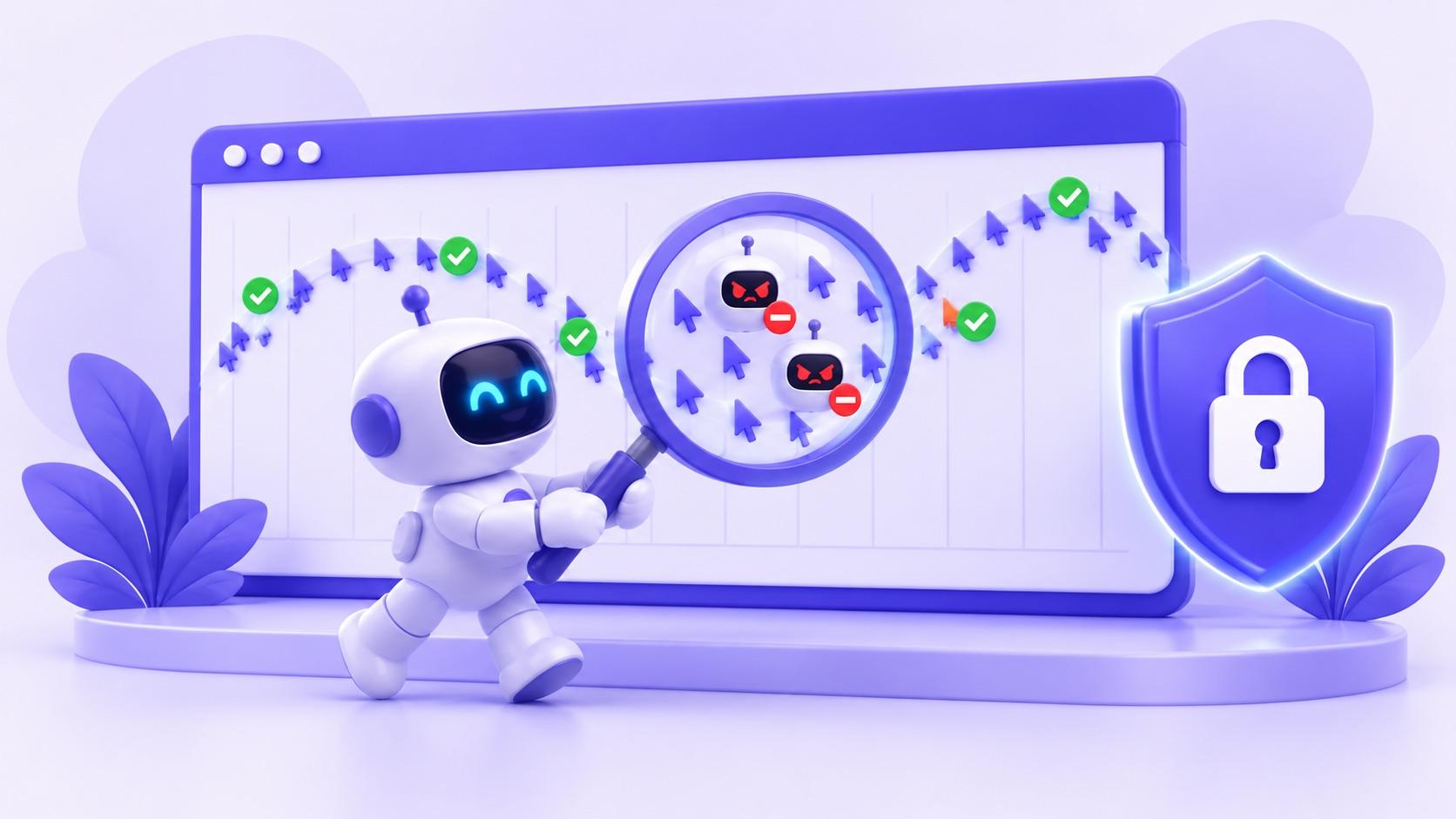
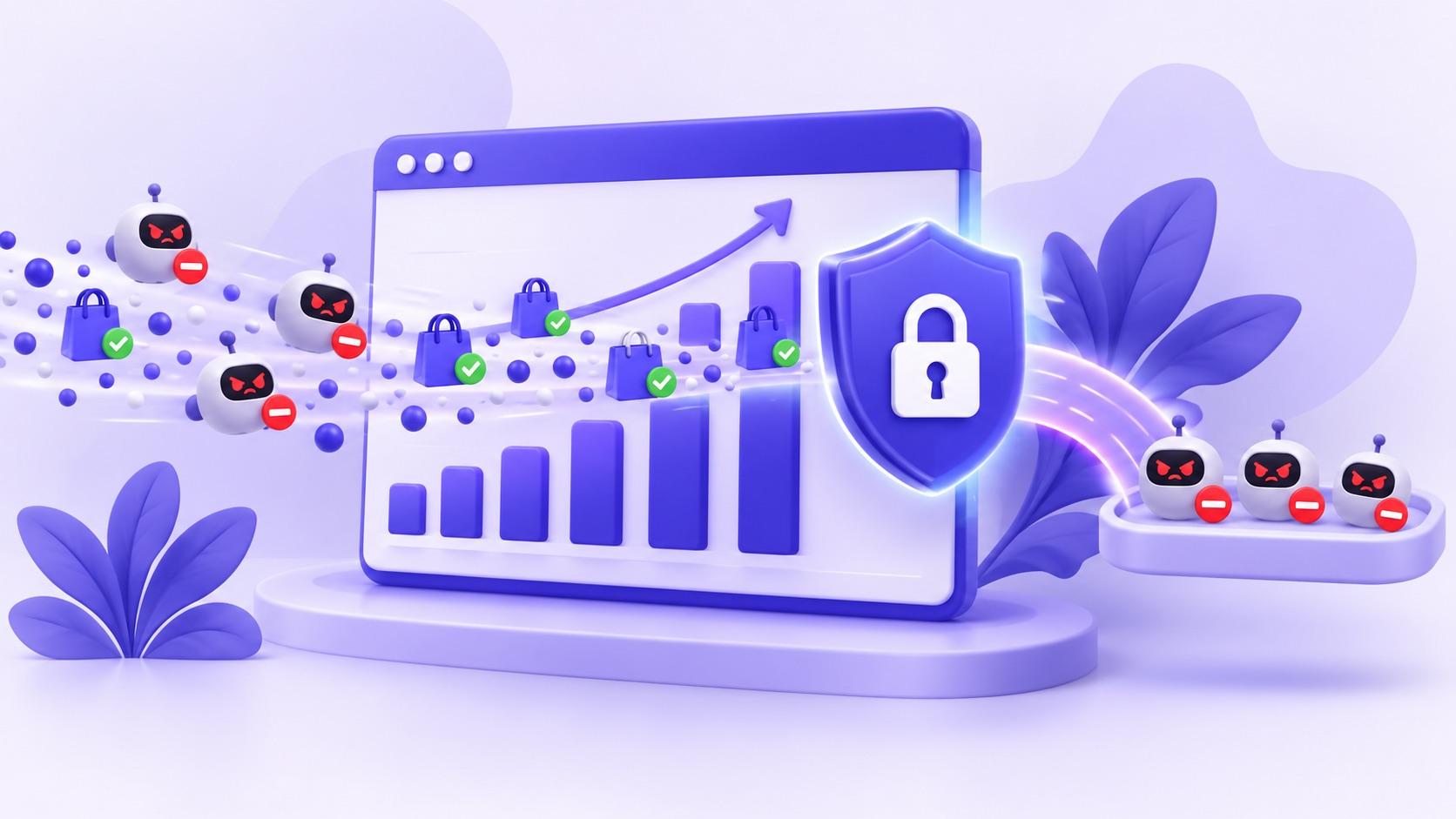
Bot traffic is any visit to your website made by a program instead of a person. On a Shopify store, that includes search engine crawlers, link previews, price scrapers and test scripts. They all load your pages, and many of them land in your visit numbers.
Here is the part most guides miss. Since September 2026, Shopify already hides the bots it can identify from its session reports. Google Analytics 4 hides known bots too. So the real question is not "do I have bots?" but "which bots does each report still count?" This guide shows you where to look.
What bot traffic is, in plain words
Website bot traffic is created by software, not by shoppers. Some bots help you: search engines read your pages so people can find them, and chat apps fetch your link to draw a preview. Others don't: scrapers copy your prices and photos, and scripts load pages to test or attack a store. All of them can show up as visitors.
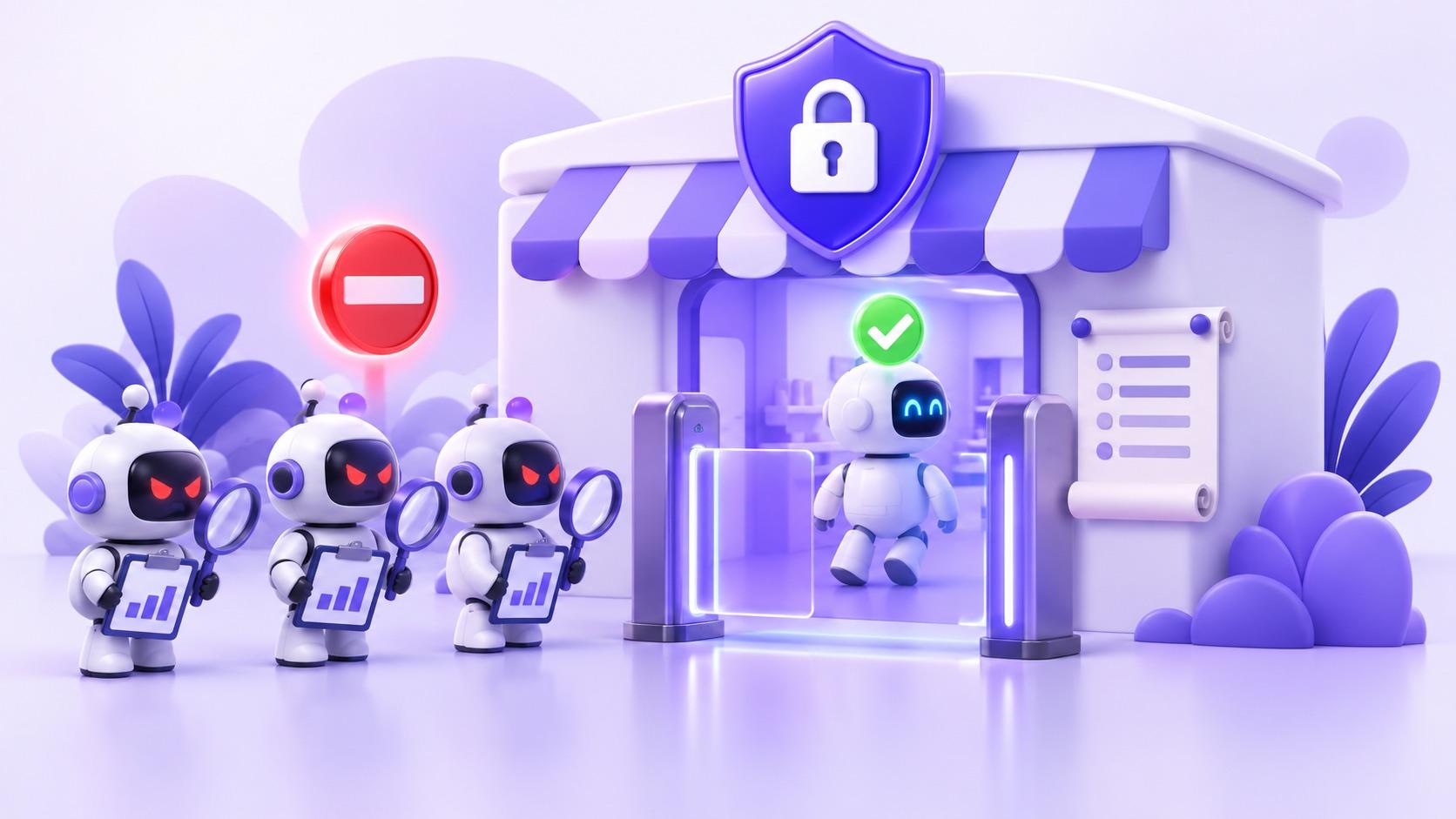
Shopify's Help Center sorts bots by their purpose: helpful, unwanted or harmful. That's a useful way to think about website bot traffic. A visit from Googlebot and a visit from a price scraper look the same in a sessions chart. They are not the same for your business.
This post is about recognizing bot traffic. If you want the list of bots that visit a store and how to block the bad ones, read how to block bots on Shopify.
Shopify already removes some bots from your reports
Shopify checks every visit for signs of automation. Each event in a session, such as a page view, is compared against a set of criteria. Then Shopify labels the whole session as human or bot, based on all of its events.
Since the rollout on 21 to 23 September 2026, the bot sessions Shopify identifies are hidden from session reports by default. Reports that support it have a Human or bot session filter, so you can show the bots again. Orders and sales don't change. Session numbers, and so your conversion rate, can. Our guide to what sessions mean on Shopify walks through that change, the reports where you can't change the filter, and a worked conversion-rate example.
Shopify is careful on purpose. Its Help Center says it's "better to miss some bots than incorrectly label real customers as bots." So some bots still count as people, and some advanced bots may not be caught right away. Shopify doesn't publish the exact criteria it uses.
If your store is headless (a custom storefront that doesn't use a Shopify theme), Shopify says the filters and session behavior can differ. Developers can query the same label in ShopifyQL, Shopify's query language for reports, with the human_or_bot_session field.
Three tools, three different bot counts
Shopify Analytics, Google Analytics 4 (GA4) and a bot app like Zonify each decide on their own what a bot is. That's one reason their numbers never match. Your own visits are another, covered in keeping your own visits out of GA4 and Shopify.
| Shopify Analytics | Google Analytics 4 | Zonify | |
|---|---|---|---|
| How it decides | Checks each event against its criteria, then labels the session | A list of known bots from Google research and the IAB's International Spiders and Bots List | Labels the bots that run the storefront script, by type |
| What happens to bots | Hidden from session reports by default | Removed automatically | Kept out of visit numbers and shown on their own page |
| Can you see the bots? | Yes, in reports with the Human or bot session filter | No. You can't see how much was removed | Yes. Each bot is named on the Bots page |
| Can you switch it off? | You can include bots in supported reports, not on Home or Live View | No | Bots are always kept apart. Choose Bots in Analytics to see them |
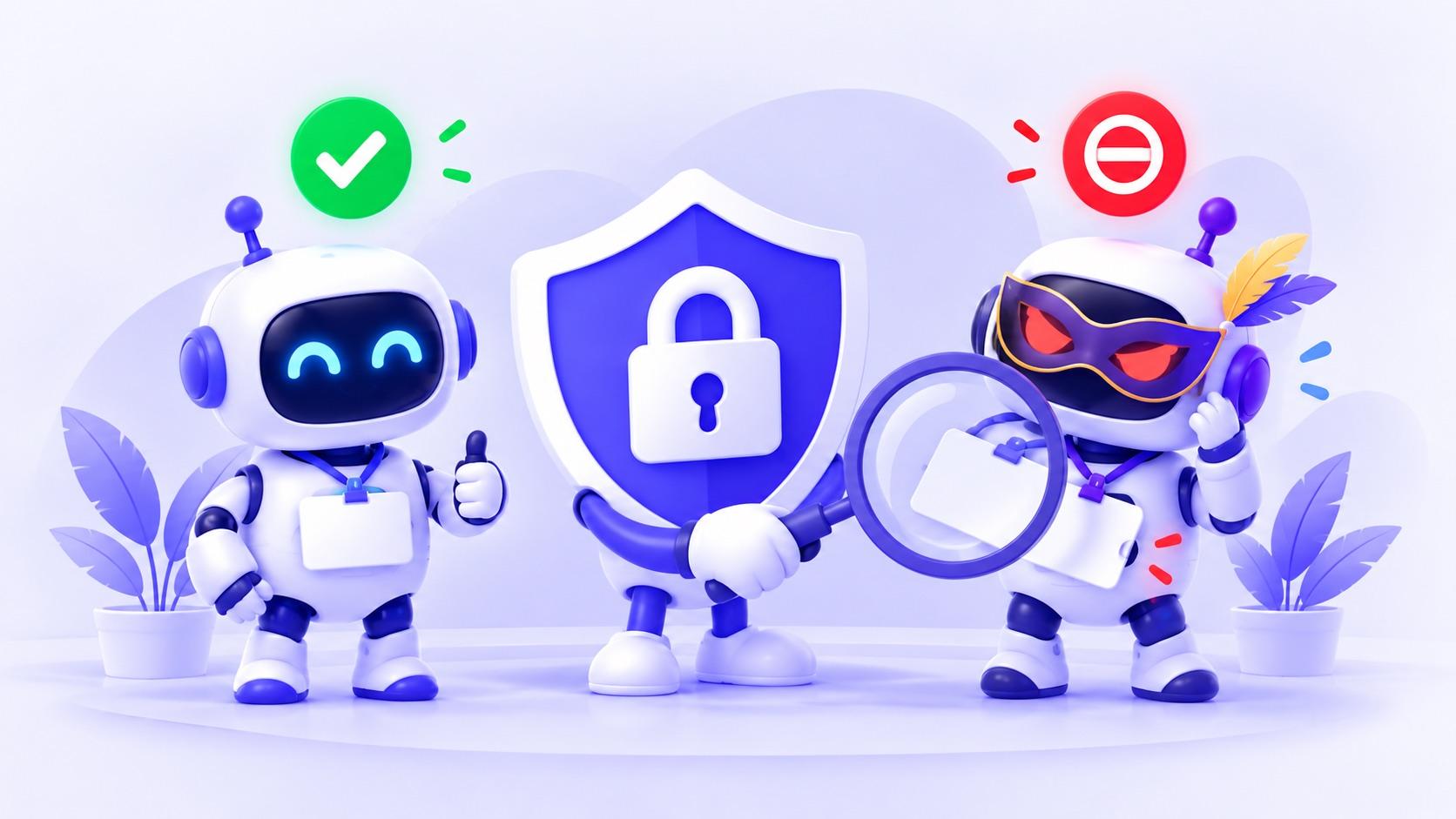
| Checks a bot's identity | Not documented | Not documented | Google, Bing, Apple, OpenAI, Anthropic, Perplexity, Amazon, DuckDuckGo and Common Crawl bots are checked against the addresses their owners publish. A bot that fails is marked Fake; with no real address it shows "Not proven yet" |
| What it can miss | Bots it isn't sure about. It leans toward "human" | Bots that aren't on the known list | Bots that never run JavaScript |
Shopify's own advice fits here: compare your analytics with other platforms that filter bots differently. A big, steady gap between two tools is a clue worth following. And keep in mind that Shopify's filter and GA4's exclusion only clean up your reports. They don't stop a bot from loading your pages.
How to identify bot traffic in your Shopify reports
To identify bot traffic on Shopify, compare human and bot sessions, then look at where the bot sessions come from. Watch for a large bot share, one source sending many bot sessions, or a place that sends visits but never orders. Those are the clearest signs. Work through these checks in Analytics > Reports.
- Turn the filter around. Open Sessions over time and split it by Human or bot session (the steps are in our sessions guide). A large bot share suggests your numbers from before September 2026 held many bots too. Shopify notes that a higher conversion rate for humans shows bots were diluting your real results.
- Find the source. Add the Referrer name dimension to a bot-only view. Shopify says a lot of bot traffic from one source can mean automated crawling or testing from that channel. If an ad network or a link in a newsletter shows up here, ask the provider about it.
- Read Sessions by location. This report shows countries, regions and cities. Some bots run on rented cloud servers in data centers. Shopify's guide to identifying bot activity lists many sessions from Google Cloud or Amazon Web Services data center locations, such as Ashburn, Virginia, as a possible sign. Google, for example, lists data centers in Council Bluffs (Iowa, US), The Dalles (Oregon, US), Eemshaven (Netherlands), Hamina (Finland) and Singapore. A steady stream of sessions from a data center town that never orders is a hint, not proof. People live there too.
- Put sessions next to orders. Bot filtering never touches orders. So a spike in sessions with no change in orders or add-to-cart rate deserves a second look, even after filtering. Shopify's advice on dealing with bots is to watch for exactly these spikes and patterns.
- Check the dates on any comparison. Sessions before 7 October 2025 have no bot label, and 21 to 23 September 2026 changed how sessions are counted. A comparison across either date mixes two ways of counting, so don't read it as a change in shoppers (more on that baseline).
- Look outside the sessions reports. Shopify also lists these as possible signs: many free ($0.00) orders, new customer accounts with odd names made of mixed letters and numbers, and store searches that look like long strings of letters and numbers. Not every spike is a bot. A load test, a new integration or an unexpected flash sale can look the same.
Say you run a shop in Leeds that only ships within the UK. Your location report shows sessions every night from a town in Iowa or Finland, with no carts and no orders. That pattern is worth a closer look. It often comes from software, but turn the filter around first and see whether Shopify already counts those sessions as bots. The same check works for a store in Pune, Melbourne or Toronto.
Signs of bot traffic in Google Analytics 4
GA4 removes known bots without showing you how many. What's left can still include bots that aren't on the list. Analyzing bot traffic in GA4 comes down to one useful number: engagement rate.
In GA4, a session counts as engaged if it lasts longer than 10 seconds, has a key event (an action you mark as important, like a purchase), or has 2 or more page views. If a program loads one page and leaves at once, that session never counts as engaged. So a source, city or landing page with lots of sessions and an engagement rate near zero is a common sign of bots, or of a tracking problem on that page.
Most GA4 reports don't show engagement rate until you customize the report and add it. Once it's there, sort by sessions and look for rows that are big but never engaged.
What no report can show you
The last row of the table above is the honest part. Each tool misses something:
- Shopify would rather count a bot as a person than the other way around.
- GA4 removes only bots on its known list, and never shows you what it removed.
- Zonify works through a small script in your theme, so it can't see bots that never run JavaScript. A simple script that only downloads your page's code never shows up in its numbers.
- Well-disguised bots that copy a real browser can look like a person in every report.
So use these reports to spot patterns, not to get an exact bot count.
What to do once you've spotted bot traffic
What you do depends on what the bots are doing.
- They only make your numbers messy. Shopify now hides the ones it identifies. Use the Human or bot session filter, compare periods on the same side of September 2026, and you may not need anything else.
- They are search engines, ad checkers or link previews. Leave them alone. They help shoppers find you and keep your ads and shared links working.
- They fill in your forms. Shopify turns on hCaptcha for every store by default. Check that it's still on: it limits spam bots on contact and comment forms and customer account pages. Stores on the Shopify Plus plan can also turn on bot protection for checkout.
- They copy your store or pretend to be Google. That's when blocking helps. See how to block bots on Shopify and how to spot a fake Googlebot.
If you want to see the bots by name, Zonify's bot blocker shows every bot that runs your storefront script on its own Bots page, with its type and whether it's verified. It's free to install, with every feature included. You choose which bot types to block, and nothing is blocked by default. Search engines, ad checkers, link previews and uptime checkers can't be blocked, and a verified bot is never blocked by type.
The short version
- Bots are programs that visit your store. Some help you, some don't.
- Since 21 to 23 September 2026, Shopify hides the bot sessions it identifies from session reports by default. Orders and sales don't change.
- GA4 removes known bots too, but you can't see how many.
- To spot the rest, turn Shopify's Human or bot session filter around, check Referrer name and Sessions by location, compare sessions with orders, and look for $0.00 orders and odd new accounts.
- No report sees every bot. Bots that never run JavaScript, or copy a real browser well, can stay hidden.
Questions about how Zonify counts visits and bots? The FAQ covers the details.