 Zonify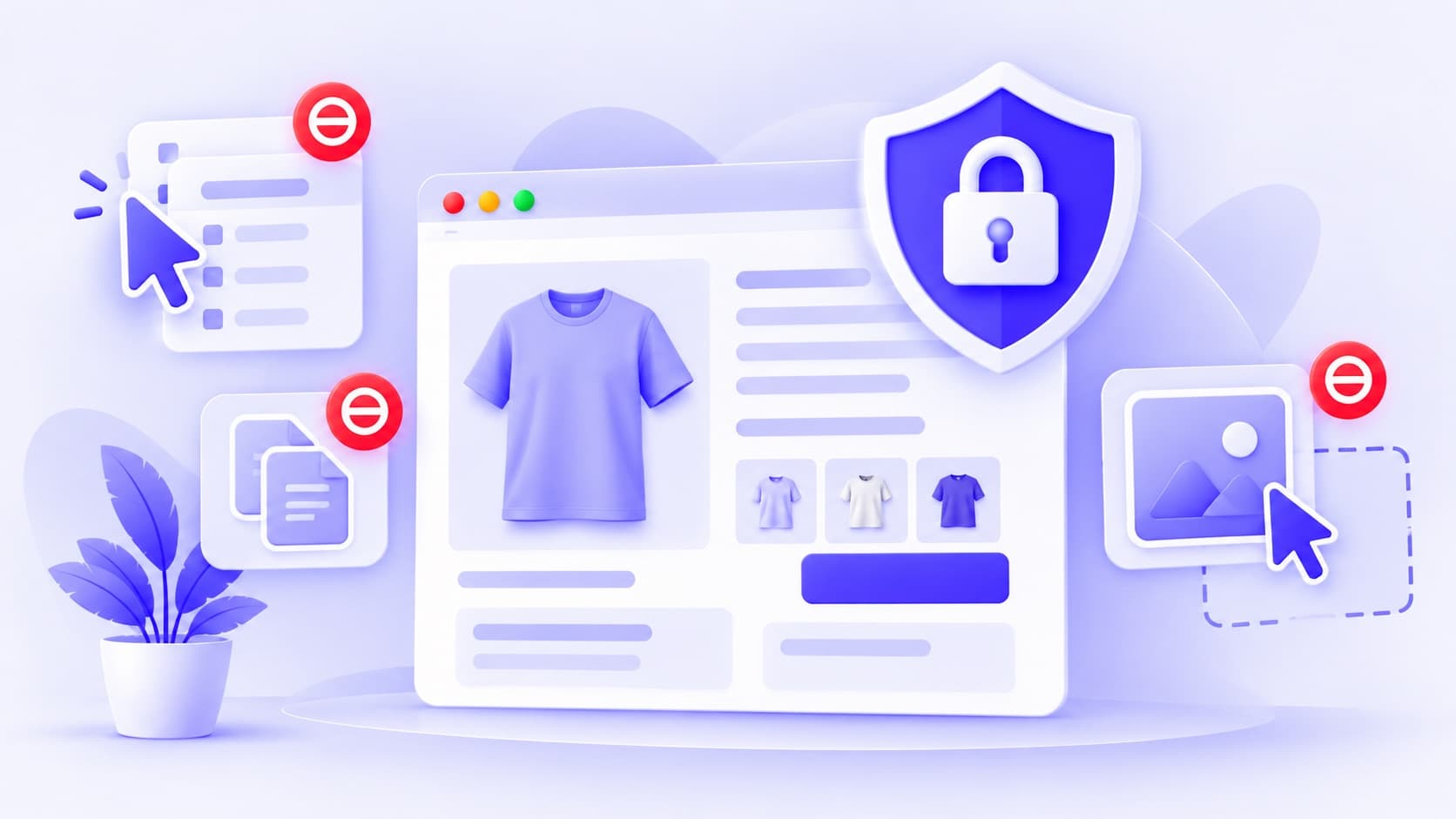
You spent a day shooting product photos and an evening writing the descriptions. A week later, you find them on someone else's store.
It's a common reason Shopify store owners look for a way to disable right-click. It feels like it should stop copying.
It helps, a little. This article explains exactly what content protection stops, what it can't stop, how it can annoy real shoppers, and how to use it sensibly alongside better ways to protect your work.
What content protection actually does
Content protection is a small script on your store's pages that switches off some of the browser's normal actions. In Zonify's content protection there are five settings, and you can switch each one on or off:
| Setting | What it stops | What still works |
|---|---|---|
| Disable right-click | The right-click menu, including “Save image as” | Clicking links and images as normal |
| Disable text selection | Highlighting text on the page | Selecting text inside form fields, like the address box |
| Stop image dragging | Dragging an image out of the page to save it | Clicking an image to open the product |
| Disable copying | Copy and cut outside form fields, including keyboard shortcuts | Pasting, so shoppers can paste a discount code |
| Block developer tool shortcuts | Keyboard shortcuts such as F12 | Opening developer tools from the browser menu |
When someone tries one of the blocked actions, Zonify can show a short message in the corner of the page, such as “Content is protected”. You write the message.
What it can't stop
Here is the honest part. Content protection stops casual copying. It can't stop someone who has decided to copy your content.
- Screenshots. Anyone can take a screenshot of your page, on any device.
- The page source. Your images and text are sent to every visitor's browser. The browser menu can still show the page source and developer tools.
- Turning off JavaScript. Content protection is a script. With scripts switched off, it doesn't run.
- Saving the page. Browsers can save a whole page, images included.
- Copying from elsewhere. If your photos appear in search results, ads or social posts, they can be taken from there.
So treat content protection as a “please don't” sign, not a lock.
Can it annoy real shoppers?
Yes, if you switch on more than you need. Shoppers use these actions for good reasons:
- Copying a product name to compare prices or to message a friend.
- Selecting text to translate it, or to read along more easily.
- Right-clicking a link to open it in a new tab.
Zonify keeps the most important things working. Form fields stay selectable, pasting always works, and images stay clickable. But a shopper who can't select a product name may still be mildly annoyed.
How to turn on content protection
- Make sure the Zonify app embed is switched on in your theme editor. Content protection runs through it.
- In Zonify, open Content protection.
- Switch on the protections you want. Each switch saves as soon as you flip it.
- Under What visitors see, write the short message shown when a blocked action is tried. The Try it here card on the same page shows how it looks, then click Save in the bar at the top of Shopify admin.
The change is live on your storefront on the next page load. If no protection is switched on, no protection script is sent to your store at all.
Better ways to protect your content, alongside it
Content protection works best as one small part of a wider plan.
- Watermark your best photos. A small, tidy logo in a corner makes copied photos less useful and easier to trace.
- Keep your original files. Original, full-size images with their dates help show that the work is yours.
- Search for your images now and then. A reverse image search can show where your photos appear.
- Report copies. If a copy of your content appears on another store, the platform hosting it usually has a process for reporting intellectual property infringement. Shopify has one for stores on Shopify.
- Write descriptions only you could write. Your own details, tone and story are harder to pass off, and more useful to shoppers.
The short version
- Content protection stops casual copying, like right-click and “Save image as”.
- It can't stop screenshots, the page source or someone with scripts turned off.
- Switch on only what you need. Right-click and image dragging are a good start.
- In Zonify, form fields keep working and pasting is never blocked.
- Pair it with watermarks, original files and reporting copies.
Want to keep whole countries or single addresses away from your store? Start with how to block countries on your Shopify store.