 Zonify
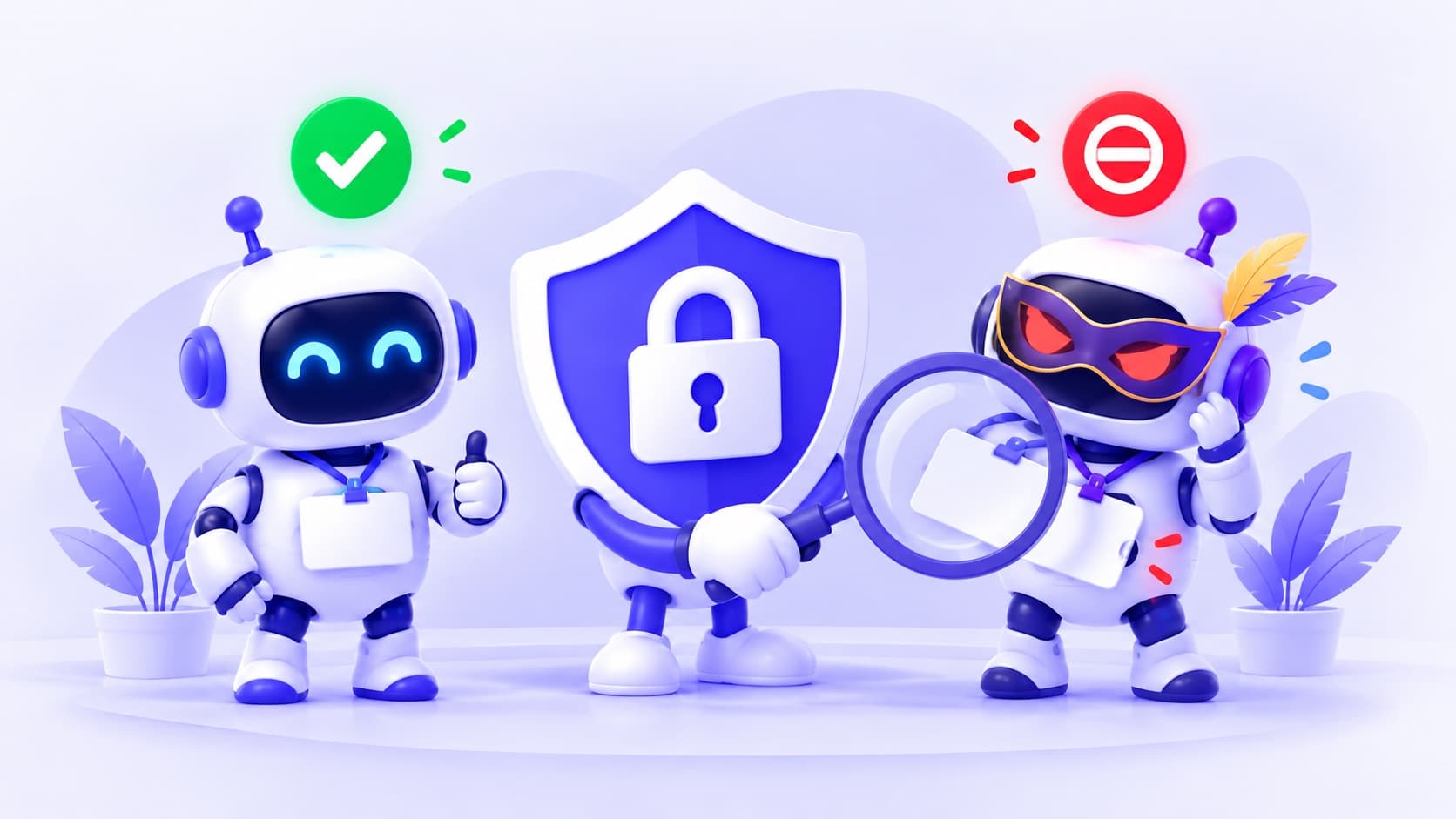
Not every visitor to your store is a person.
Some are programs. Google sends one to read your pages, so shoppers can find you in search. Facebook sends one to draw the preview when someone shares your product. Those are good.
Others are not. A competitor's script reads your prices every hour. A program copies your product photos and descriptions. Another one calls itself Googlebot, hoping you won't dare block it.
This guide explains which bots visit a Shopify store, which ones to leave alone, and how to block the rest without hurting your search ranking.
What a bot is, in plain words
A bot is a program that visits websites on its own. Every visit, by a person or a program, comes with a short line of text called a user agent. It's the visitor's name tag.
A person's browser says something like “Chrome on a Mac”. A bot usually says what it is, like Googlebot/2.1 or python-requests/2.32.
The catch: anyone can write anything on their name tag. A scraper can say it is Googlebot. That's why a name alone is never proof.
The bots that visit a Shopify store
| Kind | Examples | Leave alone or block? |
|---|---|---|
| Search engines | Googlebot, Bingbot, Applebot, DuckDuckGo | Leave alone. They bring you shoppers. |
| Ads and shopping checkers | Google Ads checker, Google Shopping, Meta product catalog | Leave alone. Block them and your ads and product listings can break. |
| Social previews | Facebook, Pinterest, WhatsApp, Slack | Leave alone. They draw the preview when someone shares your link. |
| AI crawlers | GPTBot, ClaudeBot, PerplexityBot | Your choice. Blocking may mean fewer mentions in AI answers. |
| SEO tools | Ahrefs, Semrush | Your choice. Blocking them also blocks your own SEO audits. |
| Scripts and scrapers | Python scripts, curl, Scrapy | Usually block. No shopper uses these. |
| Automated browsers | Headless Chrome, Selenium, Puppeteer | Usually block. They're a real browser driven by a program. |
| Fake bots | A “Googlebot” that isn't Google's | Block. Pretending to be Google is a sign of a scraper. |
Two ways to keep bots out
There are two different tools, for two different kinds of bot.
1. robots.txt, for bots that follow the rules
Every Shopify store has a file at yourstore.com/robots.txt. It's a polite sign on the door: “please don't read these pages”. Well-behaved bots, like Google's and most AI companies', read it and do what it says.
Shopify lets you change it with a theme template called robots.txt.liquid. To ask OpenAI's crawler to stay away, you'd add:
User-agent: GPTBot
Disallow: /
It's free, and it works for bots that obey it. But it's only a sign. A scraper simply ignores it, and a fake Googlebot ignores it too.
2. Blocking, for bots that don't
For bots that ignore the sign, you need something that checks each visitor and turns the bad ones away. That's what a bot blocker does. The hard part is telling the bad ones apart without turning away Google.
How to block bots on Shopify with Zonify
Zonify's bot blocker runs a check on every page of your store. Here's how to use it.
Step 1: install Zonify and turn on the app embed
Install Zonify free from the Shopify App Store. Then open your theme editor, go to App embeds and switch Zonify on. Nothing runs on your store until you do.
Step 2: look before you block
Open Bots in Zonify. Give it a day or two to fill up, then look at what you see:
- Every bot is named, with its type, its address and how many pages it loaded.
- Verified means the bot's owner lists that address as its own. Google, Bing, Apple, OpenAI, Perplexity and DuckDuckGo publish their addresses, and Zonify checks them every day.
- Fake means the bot used a known name from an address that doesn't belong to that company.
- A red banner at the top tells you when fake bots were found.
Bots never count as visits. Your Analytics numbers stay about people, and a Bots card on your Dashboard and in Analytics shows how many bots came.
Step 3: switch on the types you want blocked
The Block bots card on the Bots page has a switch for each type. A good start for most stores:
- Fake bots: on
- Automated browsers: on
- Scripts and scrapers: on
- AI crawlers, SEO tools: your choice
- Cloud servers: usually off, because some shoppers browse through a VPN that runs on a cloud server
Each switch saves at once, and Undo puts it back. Changes apply within about 30 seconds.
Step 4: check it worked
A blocked bot sees “Store not available”. In Analytics, choose Bots above the visits list: blocked bots show as Blocked, with how many of their page loads were stopped. The second line under each bot says why Zonify labelled it, like “IP is not Google's”.
If one address keeps coming back whatever it calls itself, click Block IP on its row and add a note.
What bot blocking can't do
Be clear about the limits, so you know what you're getting.
- Bots that don't run JavaScript aren't seen. Zonify works through a small script in your theme. A simple script that only downloads your page's code never runs it, so it can't be seen or stopped. Nothing that runs inside a Shopify theme can stop those.
- Most AI crawlers never reach Zonify. Shopify itself turns most AI crawlers away from app requests before Zonify can check them. Use
robots.txtfor those. - A bot that hides its name is hard to catch. If a bot calls itself Chrome, Zonify only catches it if it fakes a search engine, says it's run by a program, or comes from a cloud server.
- The block comes after the page starts loading. Like every Zonify rule, the check replaces the page in the browser. A bot that grabs the page in the first moment has already seen it.
The short version
- Never block search engines, ad checkers or social previews.
- Use
robots.txtfor well-behaved bots, like most AI crawlers. - Use a bot blocker for the ones that ignore it: scrapers, automated browsers and fake Googlebots.
- Look at who's visiting first, then switch types on.
- No tool inside a Shopify theme can stop a script that never runs JavaScript.
Want to know how Zonify tells a real Googlebot from a fake one? Read Fake Googlebot: how to spot bots pretending to be Google.